Visualizing Data with nivo Chart
Visualizing Data with nivo Chart
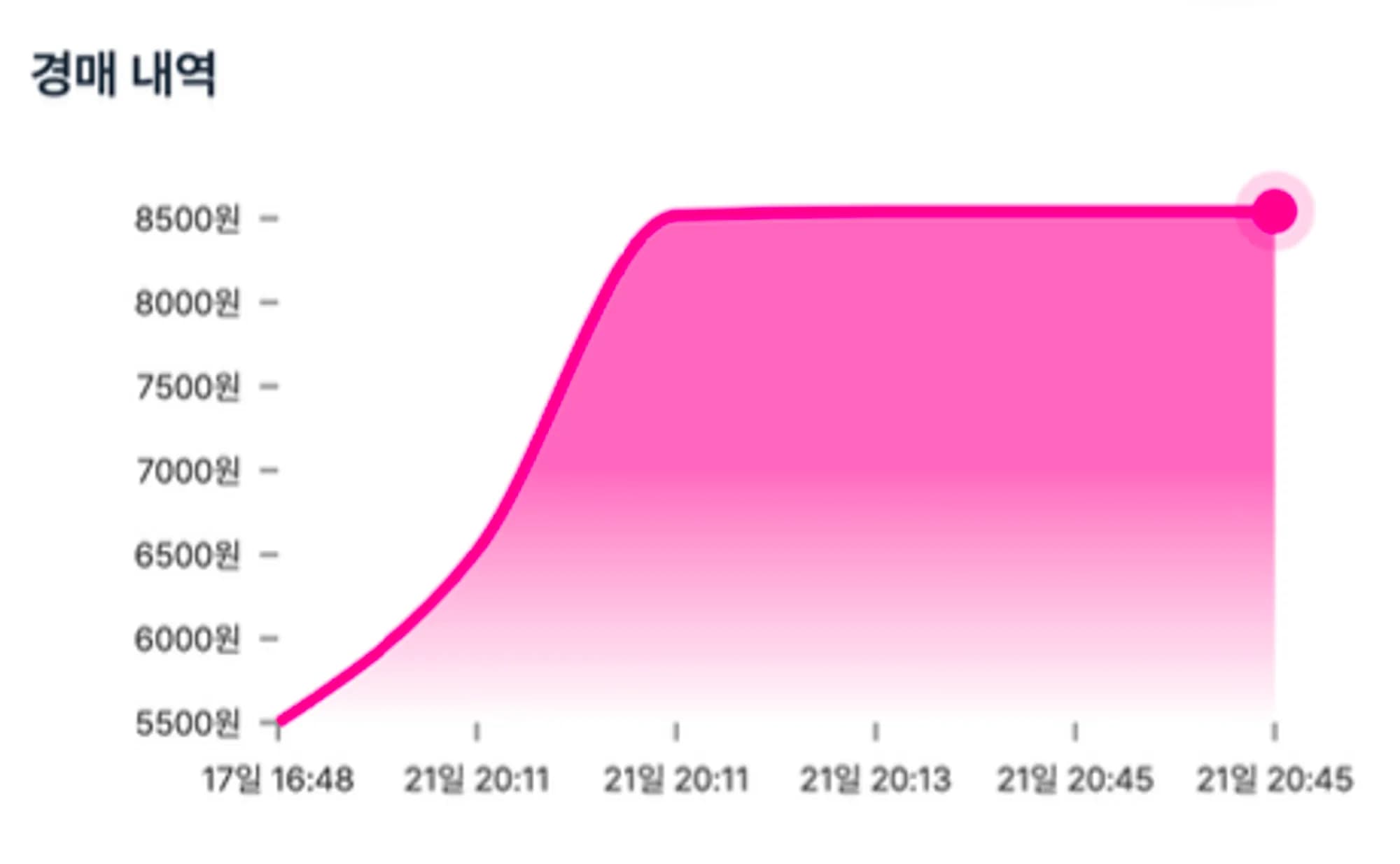
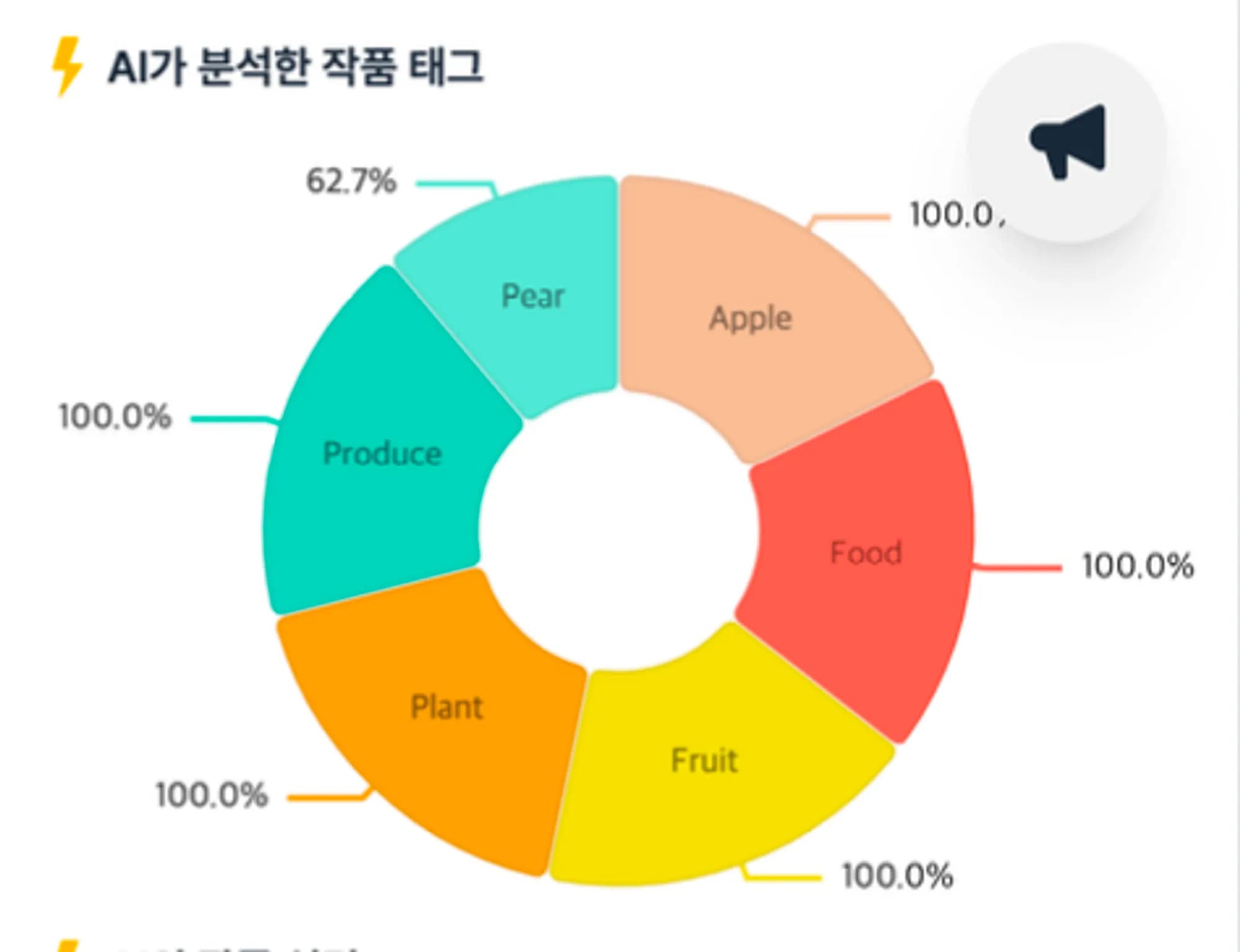


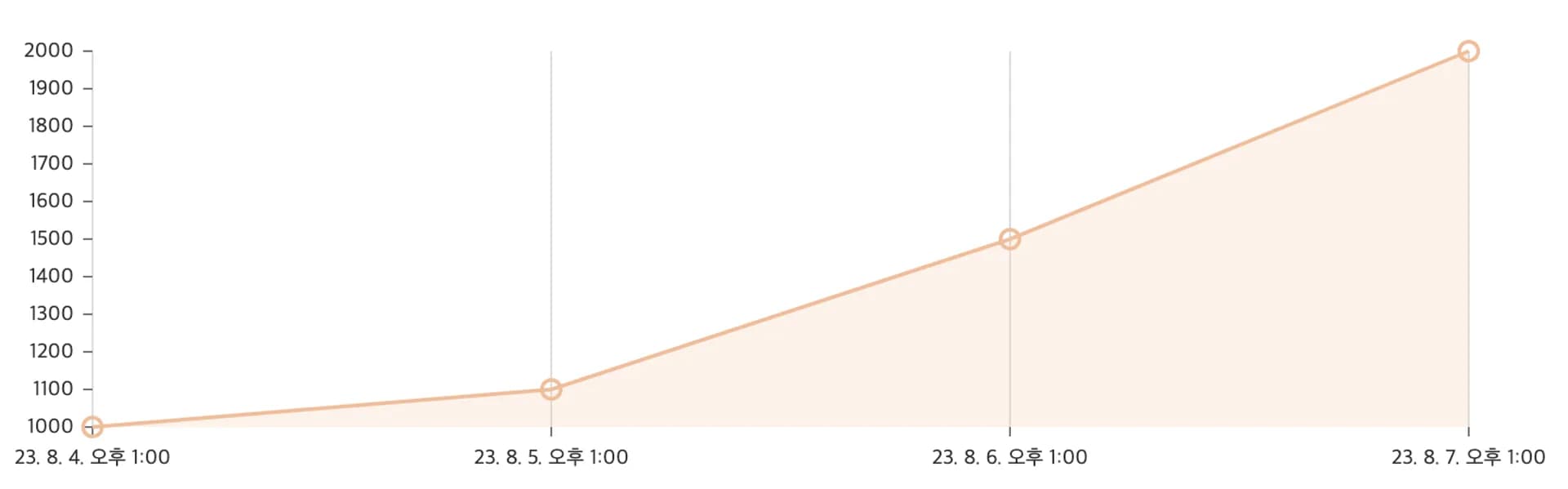
While working on the artfolio project, I needed to implement a graph to display real-time auction prices and tags as shown above.
I chose nivo because it is a well-documented library that allows for extensive customization.
What is nivo?
The nivo documentation introduces the library as follows:
nivo provides supercharged React components to easily build dataviz apps, it's built on top of d3.
Several libraries already exist for React d3 integration, but just a few provide server side rendering ability and fully declarative charts.
According to the description, nivo is a React library that makes it easy to use the data visualization library D3.
Creating a Line Chart
Since the real-time auction prices need to be drawn as a line chart, let's take a look at the Line section of nivo.
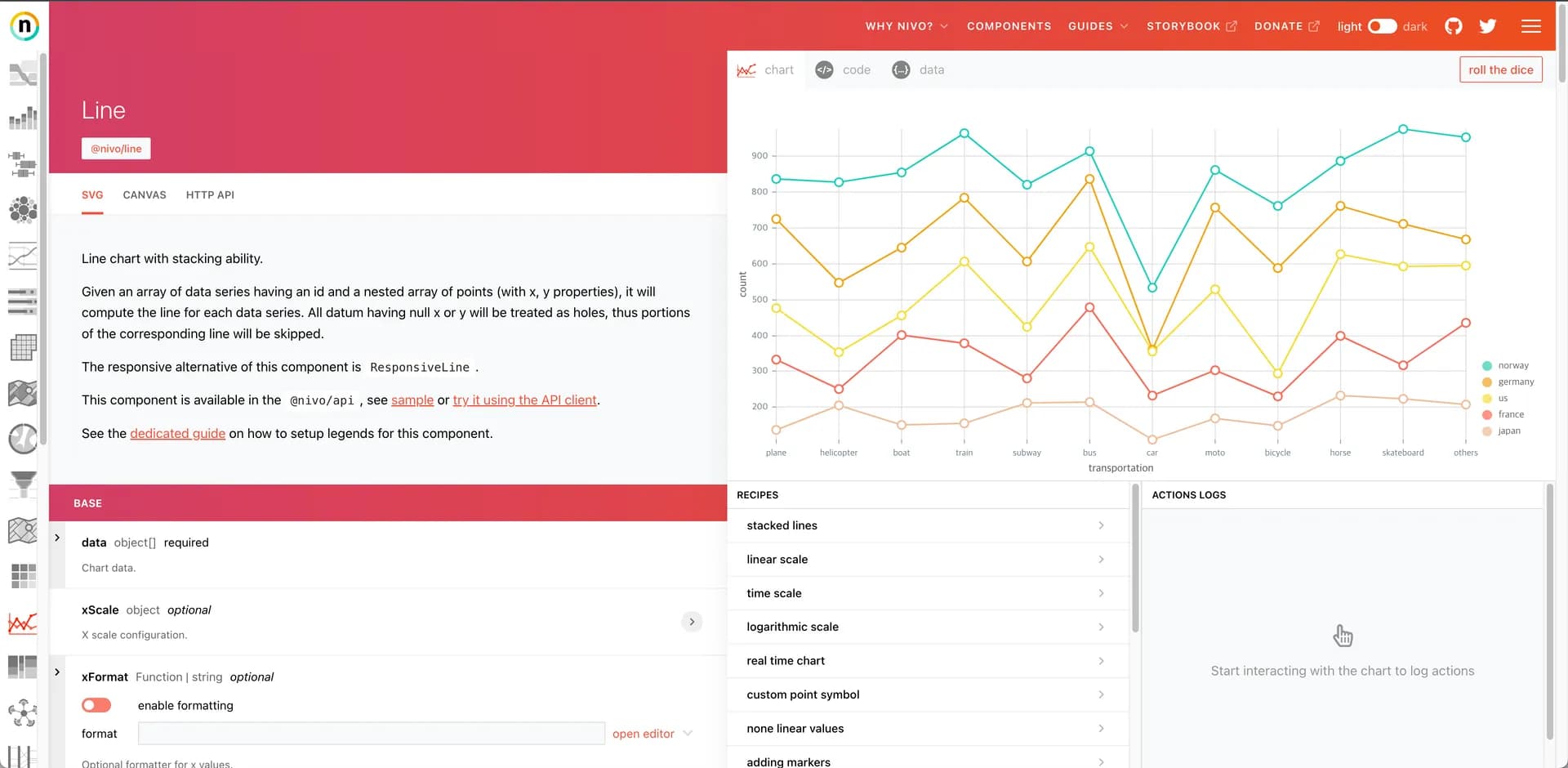

On the left, you can customize in real-time, while on the right, you can see the chart and the code.
To draw a line chart, you need the ResponsiveLine component, so you should install @nivo/line.
After that, inserting the provided code will render an svg like the following.
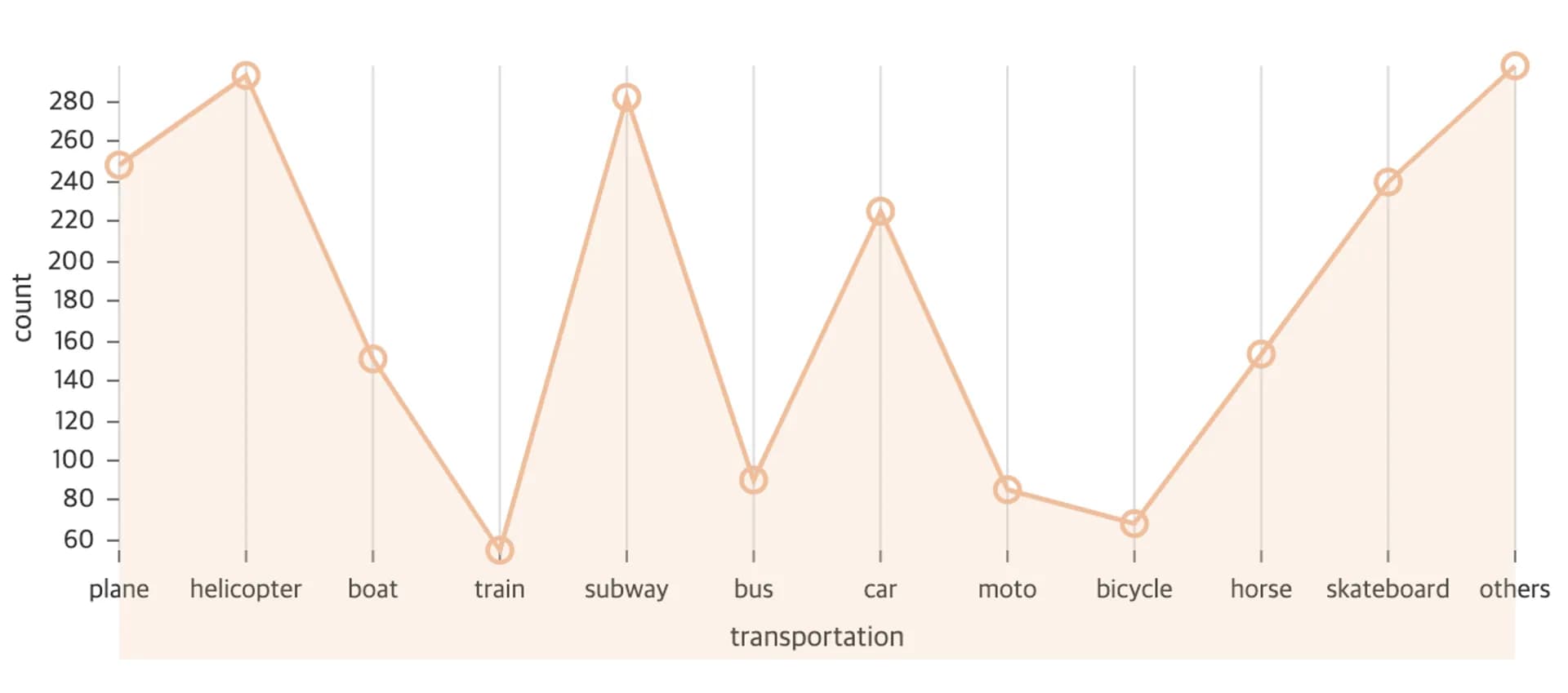

By default, the chart is automatically drawn based on the dataset assigned to data.
However, since the real-time auction price chart will display time on the x-axis and price on the y-axis, we need to change the data.
Currently, the dummy data is structured as follows:
const chartData = [
  {
    id: 'japan',
    color: 'hsl(148, 70%, 50%)',
    data: [
      {
        x: 'plane',
        y: 248,
      },
      {
        x: 'helicopter',
        y: 293,
      },
      {
        x: 'boat',
        y: 151,
      },
      {
        x: 'train',
        y: 55,
      },
      {
        x: 'subway',
        y: 282,
      },
      {
        x: 'bus',
        y: 90,
      },
      {
        x: 'car',
        y: 225,
      },
      {
        x: 'moto',
        y: 85,
      },
      {
        x: 'bicycle',
        y: 68,
      },
      {
        x: 'horse',
        y: 153,
      },
      {
        x: 'skateboard',
        y: 240,
      },
      {
        x: 'others',
        y: 298,
      },
    ],
  },
]
The data will be changed to assign time to the x-axis as follows:
const chartData = [
  {
    id: 'price',
    color: 'hsl(148, 70%, 50%)',
    data: [
      {
        x: new Date('2023-08-04 13:00'),
        y: 1000,
      },
      {
        x: new Date('2023-08-05 13:00'),
        y: 1100,
      },
      {
        x: new Date('2023-08-06 13:00'),
        y: 1500,
      },
      {
        x: new Date('2023-08-07 13:00'),
        y: 2000,
      },
    ],
  },
]
Now we need to modify the xScale and axisBottom that handle the axes.
When using time as data, there is a way to specify the type as time in xScale, but in this case, it is difficult to accurately determine the data points because the midpoints are calculated automatically.
Therefore, I chose to specify it as point and use the format in axisBottom to format the time nicely using intl.
Additionally, the chart gradient color overflows beyond the x-axis, so at this time, you need to set the value of areaBaselineValue to the minimum value of the data y to prevent it from overflowing.
The final image and code are as follows.

const LineChart = () => {
  return (
    <ResponsiveLine
      data={chartData}
      margin={{ top: 50, right: 60, bottom: 50, left: 60 }}
      xScale={{ type: 'point' }}
      yScale={{
        type: 'linear',
        min: 'auto',
        max: 'auto',
        stacked: true,
        reverse: false,
      }}
      axisTop={null}
      axisRight={null}
      axisBottom={{
        format: (tick) =>
          new Intl.DateTimeFormat('en', {
            dateStyle: 'short',
            timeStyle: 'short',
          }).format(tick),
        tickSize: 5,
        tickPadding: 5,
        tickRotation: 0,
      }}
      axisLeft={{
        tickSize: 5,
        tickPadding: 5,
        tickRotation: 0,
      }}
      enableGridY={false}
      pointSize={10}
      pointColor={{ theme: 'background' }}
      pointBorderWidth={2}
      pointBorderColor={{ from: 'serieColor' }}
      pointLabelYOffset={-12}
      enableArea={true}
      areaBaselineValue={chartData[0].data[0].y}
      isInteractive={false}
      useMesh={true}
    />
  )
}
Creating a Pie Chart
Now let's create a pie chart to display the tags in the image.
Similar to the line chart, to draw a pie chart, you need the ResponsivePie component, so install @nivo/pie.
After that, inserting the provided code will render a pie chart like the following.
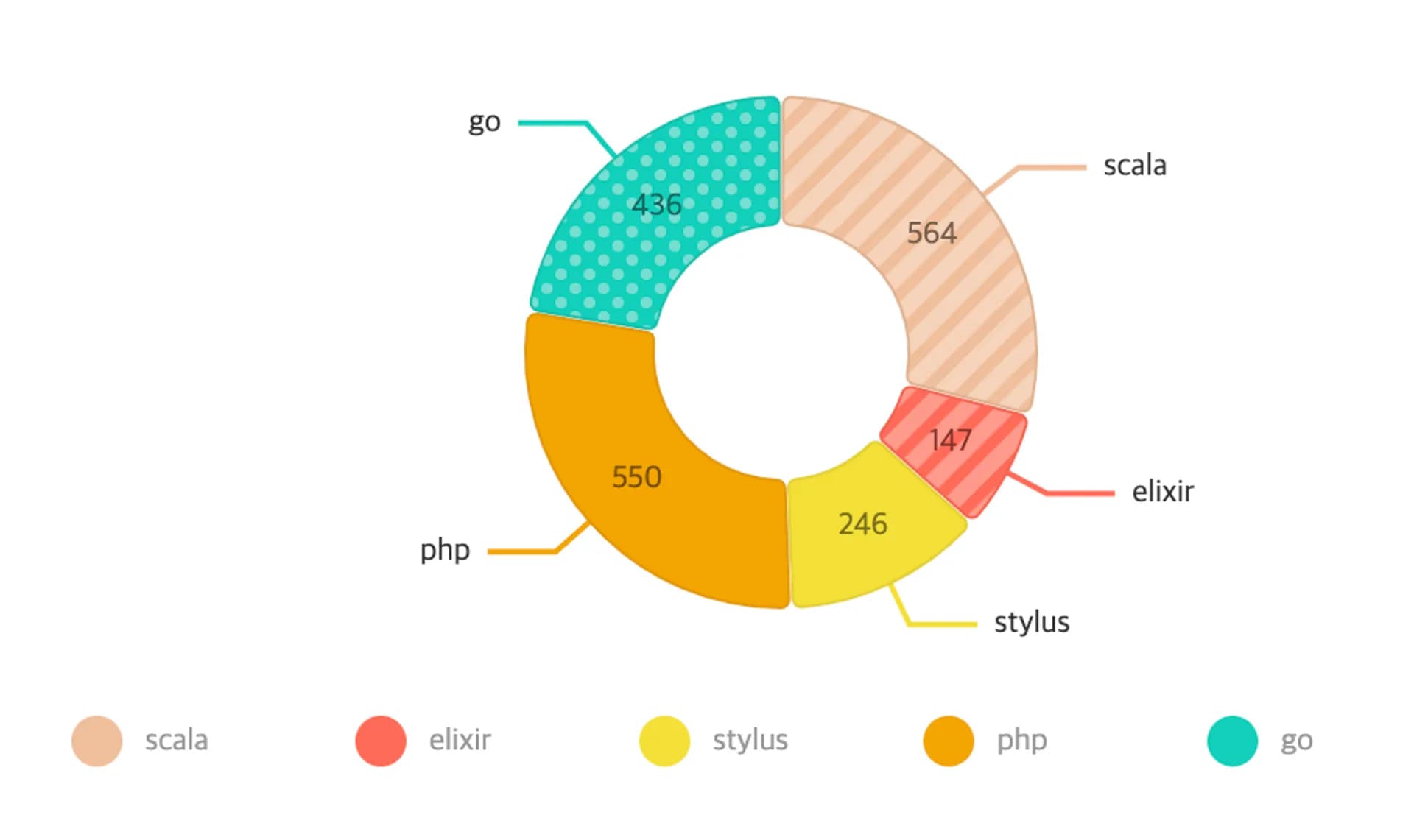

By default, the chart is automatically drawn based on the dataset assigned to data.
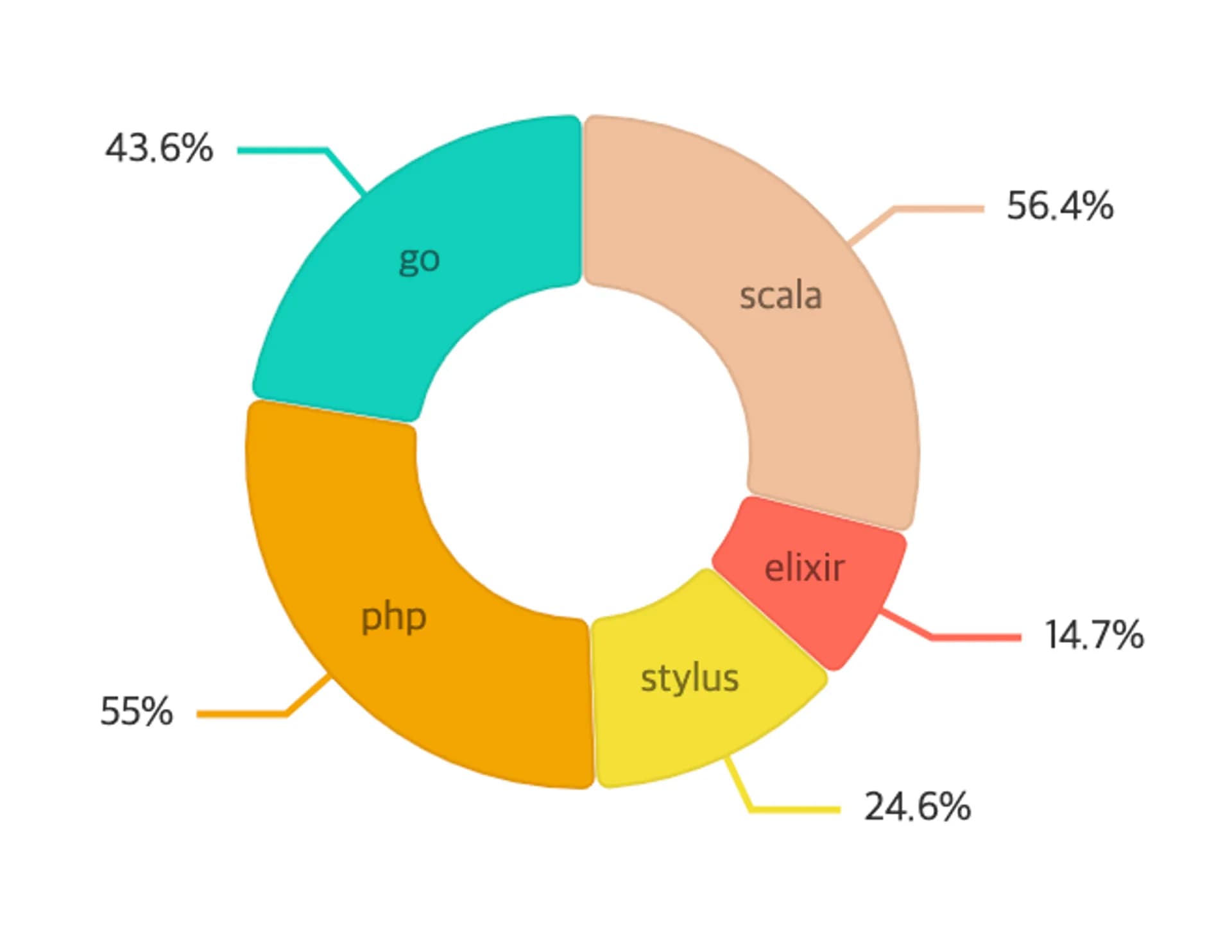
It is similar to the tag chart I will implement, but the value and label should be displayed in reverse, with numbers coming out.
The text inside the pie corresponds to arcLabel, where you assign the id.
The text outside the pie corresponds to arcLinkLabel, where you assign the value.
Since I want to display the value with a %, I will format it as ${d.value}%.
The final image and code are as follows.

const PieChart = () => {
  return (
    <ResponsivePie
      data={chartData}
      margin={{ top: 40, right: 80, bottom: 80, left: 80 }}
      innerRadius={0.5}
      padAngle={0.7}
      cornerRadius={3}
      activeOuterRadiusOffset={8}
      borderWidth={1}
      borderColor={{
        from: 'color',
        modifiers: [['darker', 0.2]],
      }}
      arcLabel="id"
      arcLinkLabel={(d) => `${d.value}%`}
      arcLinkLabelsSkipAngle={10}
      arcLinkLabelsTextColor="#333333"
      arcLinkLabelsThickness={2}
      arcLinkLabelsColor={{ from: 'color' }}
      arcLabelsSkipAngle={10}
      arcLabelsTextColor={{
        from: 'color',
        modifiers: [['darker', 2]],
      }}
      isInteractive={false}
    />
  )
}
Conclusion
Using nivo in a React environment made it easy to visualize data, which was very useful.
There are various chart libraries available, but I have not felt the need to use other libraries while using nivo, so I will continue to actively utilize nivo whenever I need charts in the future.